
Build an Awesome Daisy UI WordPress Theme - Part 4
Welcome to Building an Awesome Daisy UI WordPress Theme – Part 4. Daisy UI is an impressive selection of Tailwind components to build your next WordPress classic theme. You can have your custom theme up and running within a few weeks. In the first part of the series, we set up the environment to build an awesome Daisy UI WordPress theme and added a basic layout, footer, and navigation in the second part. The third part made it more mobile-friendly, tidied the search form and added a sidebar. The fourth and final part tidies the post meta and adds single post navigation, comments and page navigation.
- Part 1 – Setting Up
- Part 2 – Adding Nav, Footer
- Part 3 – Mobile Friendly, Navigation, Widgets
- Part 4 – Post navigation, comments and Post Meta – You are here
Dependency Changes
Since the previous parts were published there have been many changes to the infrastructure. Node has been updated, using NVM, to 22.4.1. If you have already set up your environment you can use npm-check-updates to update your dependencies otherwise clone part 4 of the repository on github.
npx npm-check-updates -uFollowed by:
npm installSingle Next & Previous Post Navigation
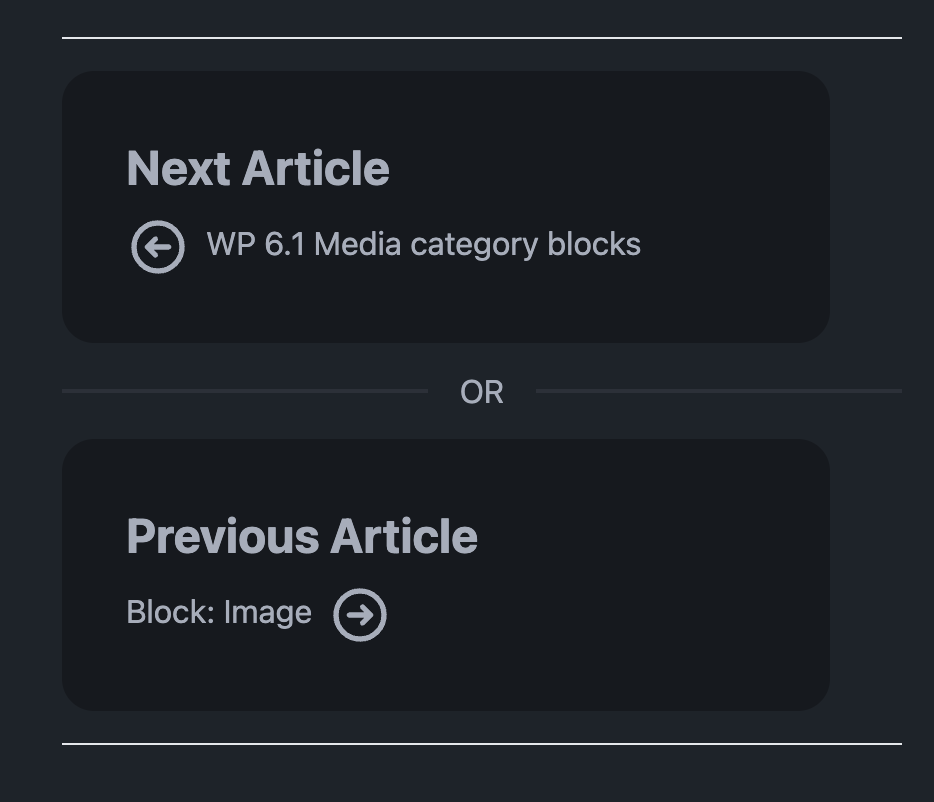
The single post navigation uses the Daisy UI divider component which automatically stacks on top of each other if on a smaller screen. To make changes you can find the slate_single_navigation function in the inc/custom-functions.php. It is called in template-parts/navigation/nav-below-single.php.
Next Previous Post Navigation on a larger screen.

Next Previous Post Navigation on a smaller screen.
Post Navigation
The post navigation uses the WP-PageNavi plugin alongside the Daisy UI pagination component. If not using the plugin it defaults to default pagination. To tweak the WP-PageNavi go to theme_pagination_class in the inc/custom-functions.php. It is called in template-parts/navigation/nav-below.php. You can find the recommended settings for WP-PageNavi in the How To Use WordPress Page Navi With Daisy UI Navigation article.

Comments
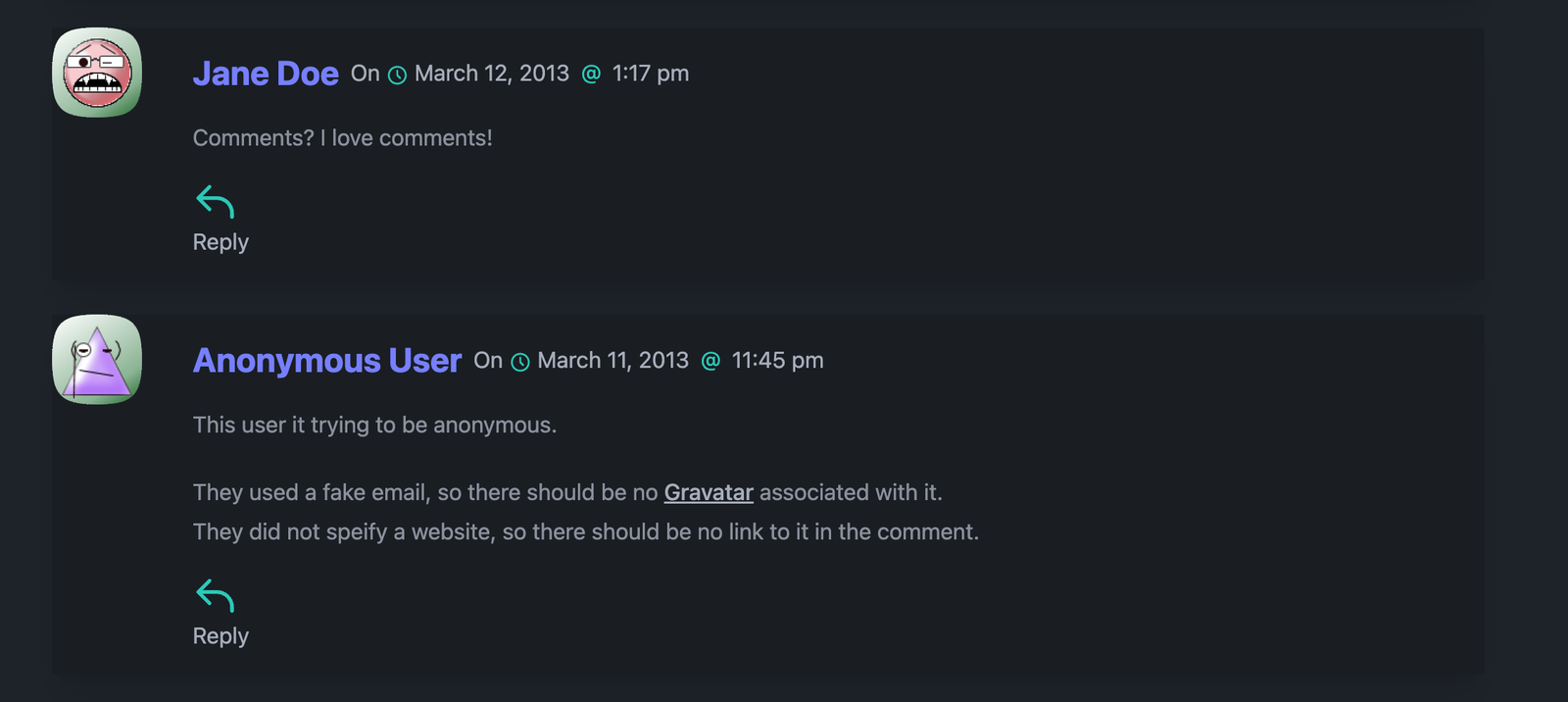
Instead of using the default comments I have added a comment walker class which is loaded from comments.php. This is styled using Tailwind CSS and has added SVG icons to give it a little more style.
You can find the layout of the comments in inc/class-slate-comment-walker.php.
 Comments
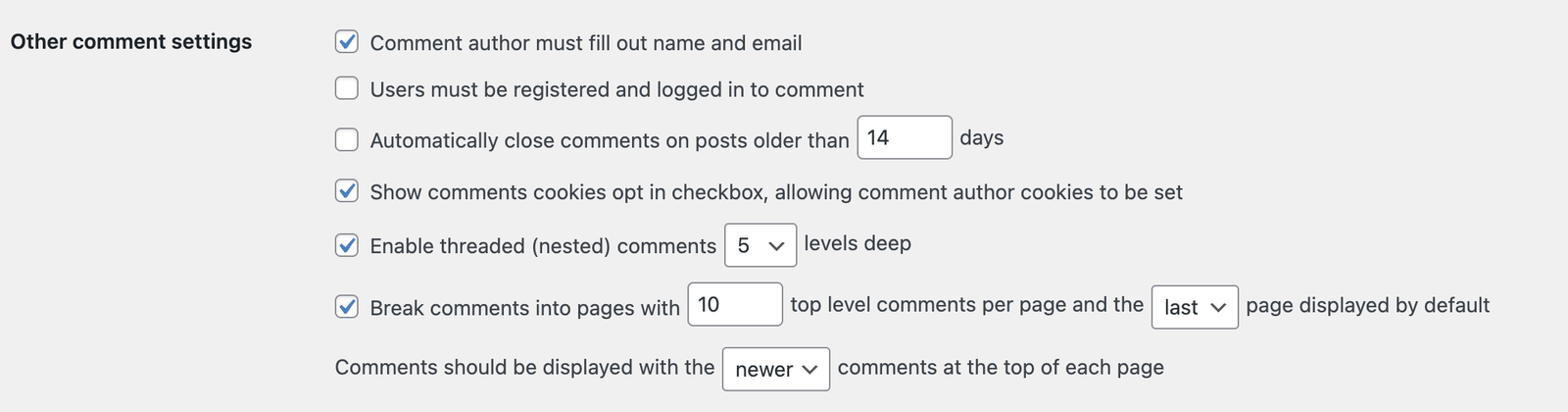
These are the settings used to display comments. You can find these in the admin section in Settings->Discussion
 Comment Settings
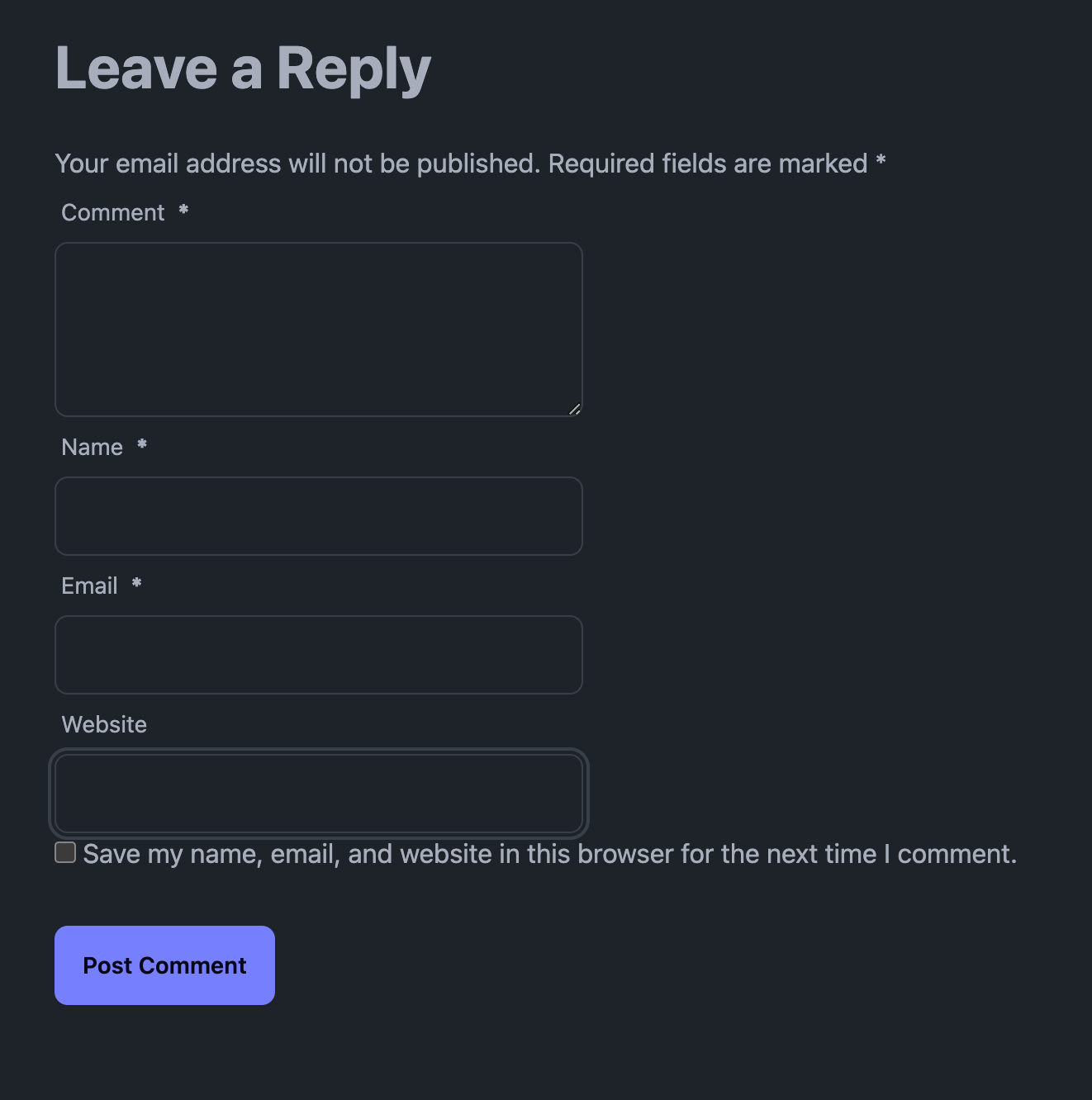
The HTML comment form uses the following components. These can be changed in the comments.php.
How it Looks
Other Changes
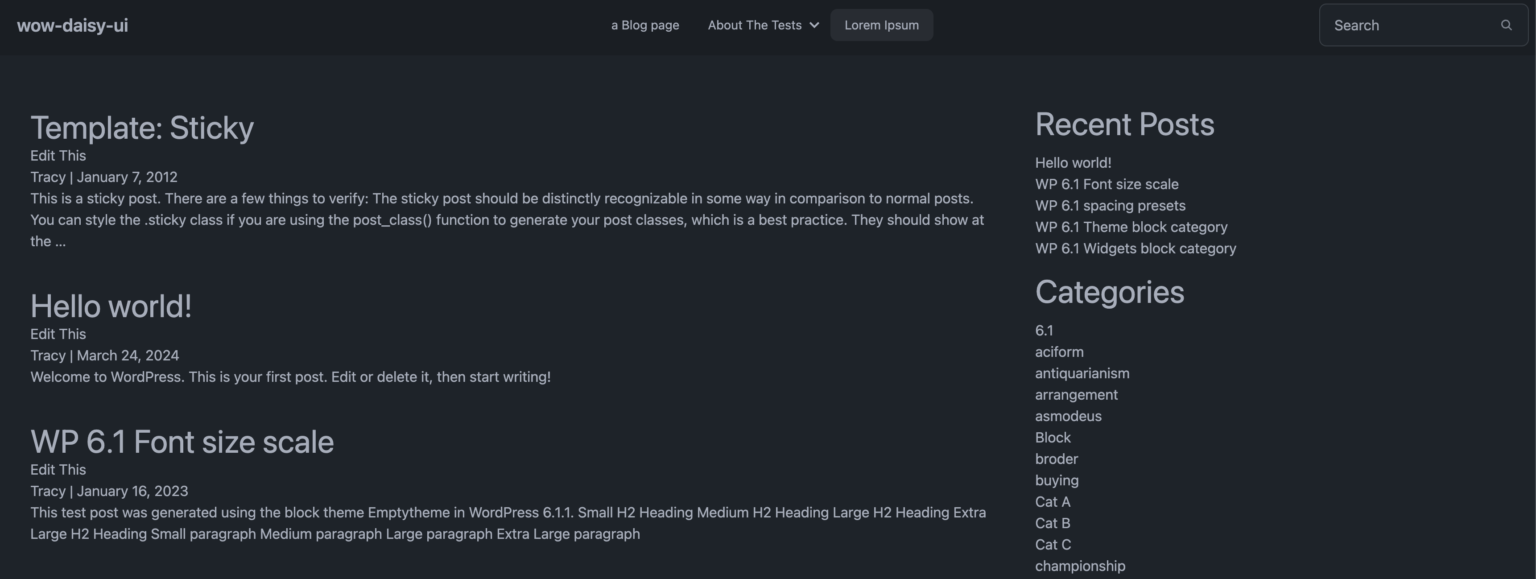
In general, the file and folder structure has been tidied up by adding all template parts into a single folder. The post-meta has been given a lift to separate it from the main content. This uses the Daisy UI badge component and can be changed in template-parts/entry/entry-meta.php. This theme comes without any additional JavaScript. To reflect this I have disabled the app.js file from loading. This can be undone by removing the comments in the functions.php file.

Conclusion – Daisy UI WordPress Theme – Part 4
This concludes building an awesome Daisy UI WordPress theme. Please feel free to get in touch If you have any questions.